


Introduction
Some weeks feel under control.
Others feel like everything is happening at once. Meetings overlap, assignments pile up, small tasks slip through the cracks, and by Friday you’re wondering where the time went.
Most people try different planners, apps, or sticky notes. They switch systems every few weeks because nothing feels simple enough to stick with.
Notion changes that when used the right way.
In this guide, you’ll learn exactly how to plan your week in Notion step by step. No complicated setup. No advanced systems. Just a clean structure you can repeat every week.
Quick Answer
How do you plan your week in Notion?
Create a simple weekly dashboard with tasks, deadlines, and priorities. Add your commitments, assign due dates, review them daily, and reset the system every week.
Consistency matters more than complexity.
Why This Matters
Why Most People Struggle With Weekly Planning
Planning fails when the system is heavier than the work.
Many people use too many apps. Calendar in one place. Tasks in another. Notes somewhere else.
There is no central dashboard.
Another issue is skipping weekly reviews. Without a reset ritual, tasks overflow and everything feels urgent.
Some tools are too complicated. When the setup feels like work, people stop using it.
A simple Notion weekly system solves this by putting everything in one clean workspace.
What a Simple Weekly Notion Template Should Include
Before building anything, clarity matters.
Your weekly planning setup should include:
- A weekly dashboard page
- Task database with due dates
- Priority labels
- Calendar view
- Weekly review section
- Clean, distraction-free layout
That’s it.
Not 25 widgets. Not 10 trackers.
If you’re interested in more structured digital systems, you can explore our productivity-friendly Notion templates inside the Pixbundle shop: https://pixbundle.com/shop
How to Use Notion to Plan Your Week
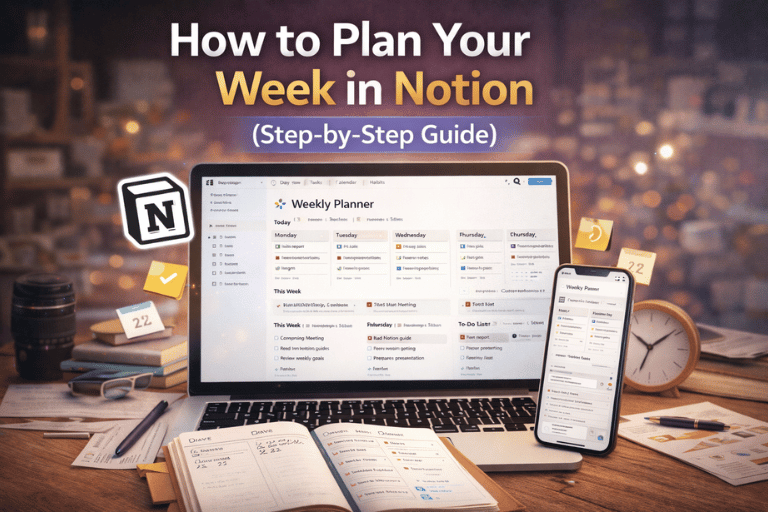
Step 1 – Create or Duplicate a Weekly Dashboard
Start with a blank page in Notion.
Name it “Weekly Planner.”
Add a simple heading for the current week.
You can also duplicate a pre-designed weekly template if you prefer not to build from scratch.
Keep the layout clean. Avoid visual clutter.
Step 2 – Create a Task Database
Add a new database below the heading.
Use a table view first.
Add the following properties:
- Task name
- Due date
- Priority (High, Medium, Low)
- Status (Not Started, In Progress, Done)
This database becomes the core of your system.
Every task you want to complete this week goes here.
Step 3 – Add a Weekly Filtered View
Now create a filtered view of the same database.
Set a filter where “Due date is within this week.”
This shows only tasks relevant to the current week.
It removes noise from future deadlines.
Clarity increases focus.
Step 4 – Add a Calendar View
Switch the database to calendar view.
This helps you visually see workload distribution.
If Wednesday looks overloaded, move tasks earlier or later.
Planning is not just listing tasks. It’s balancing them.
Step 5 – Define Weekly Priorities
Above your task list, add a small section titled “This Week’s Focus.”
List 3 main priorities only.
Not 10.
These are outcomes, not small tasks.
Example:
- Finish project draft
- Launch new digital bundle
- Complete client revisions
If you create digital products or content regularly, structured planning makes a big difference. You might also find our guide on selling ready-made digital bundles helpful:
https://pixbundle.com/blog/how-people-sell-ready-made-digital-bundles
Step 6 – Add a Weekly Review Section
At the bottom of your dashboard, add a review block.
Create simple prompts:
- What worked this week?
- What didn’t?
- What needs to move to next week?
This keeps your system alive.
Without review, planning becomes a dumping ground.
Who This Weekly Notion System Is For
This structure works well for:
- Students managing assignments
Freelancers juggling clients
Content creators planning posts
Small business owners managing tasks
Online course learners tracking progress
If you also design content or run social media, you may benefit from our Canva and design bundles that support structured content planning:
https://pixbundle.com/shop
Common Mistakes to Avoid
1. Overbuilding the System
Adding too many features kills consistency.
Keep it minimal.
2. Tracking Everything but Reviewing Nothing
If you never check the dashboard, it becomes decoration.
Schedule a 15-minute Sunday reset.
3. Planning 20 Priorities
You cannot prioritize everything.
Choose three main outcomes per week.
4. Ignoring Time Reality
If your calendar shows no free space, adding more tasks will not fix it.
Adjust workload.
How Weekly Planning Improves Productivity
Weekly planning reduces decision fatigue.
You wake up knowing what matters.
It also reduces stress because tasks are visible, not floating in your head.
Research consistently shows structured planning improves task completion and reduces overwhelm. You can read more about productivity systems on Harvard Business Review:
https://hbr.org/2015/01/to-do-lists-dont-work
Notion works well because it combines flexibility with structure.
For an overview of how Notion functions as a workspace tool, visit:
https://www.notion.so
Frequently Asked Questions
Is Notion good for weekly planning?
Yes. Notion allows customizable dashboards that adapt to your workflow instead of forcing one structure.
It works for both simple and advanced systems.
Do I need Notion Pro?
No. The free version is enough for personal weekly planning.
Most features required for this setup are included.
Can I use this on mobile?
Yes. Notion has a mobile app.
However, setup is easier on desktop.
How long does it take to build this system?
Around 20–30 minutes.
After that, weekly resets take less than 15 minutes.
Can I customize colors and layout?
Yes. Notion allows formatting, icons, covers, and layout changes.
Keep design clean for focus.
Does this work for teams?
Yes, but teams may need shared databases and permission settings.
For personal use, keep it simple.
What if I miss a week?
That’s normal.
Reset, review unfinished tasks, and continue.
Consistency beats perfection.
Should I plan daily instead of weekly?
Weekly planning gives direction.
Daily planning handles execution.
Both work together.
Can I combine this with content planning?
Yes. Many creators integrate content calendars inside Notion.
Structured digital templates can speed this up.
Conclusion
Weekly planning does not need to be complicated.
A simple dashboard, clear priorities, and a short review ritual are enough.
What matters most is using the system consistently.
Start small. Improve gradually.
If you prefer starting with ready-made digital productivity templates instead of building from scratch, explore our structured Notion and design resources at Pixbundle: https://pixbundle.com
Build clarity. Plan weekly. Stay consistent.
Leave a Reply